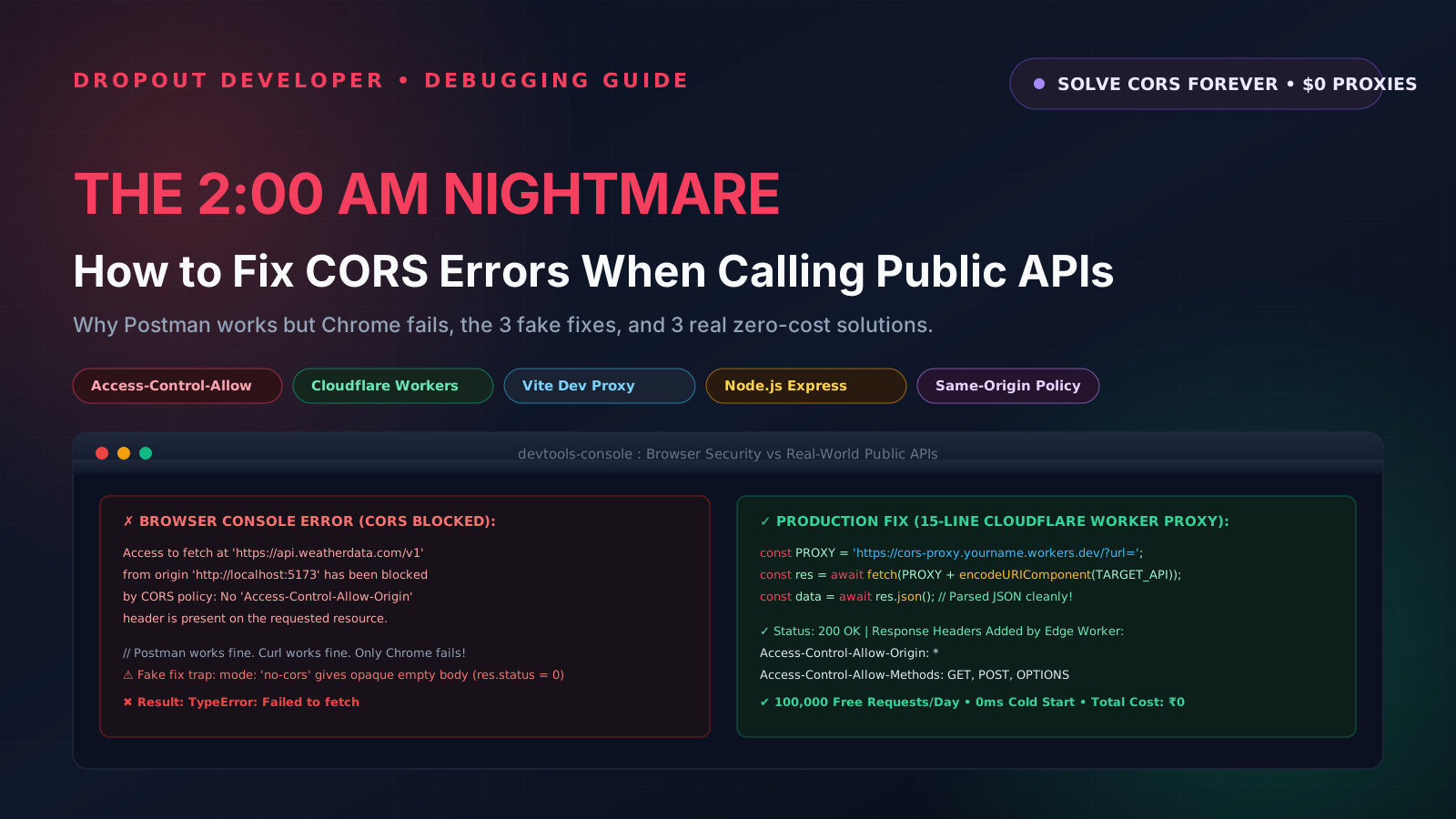
The 2:00 AM Wall: When Everything Breaks
It is 2:00 AM. Your room is dead quiet. Everyone in your family or hostel is asleep. You have been sitting at your desk for three hours straight, working on a brand new portfolio project to put on your resume.
You found an awesome data source on the famous github.com/public-apis/public-apis directory. You spent an hour designing a responsive card layout in React, Angular, or Vue. You set up clean CSS grid classes, created loading spinner states, and finally wrote your data fetching call:
async function loadLiveFeed() {
  const url = 'https://api.somedataservice.com/v1/feed';
  const response = await fetch(url);
  const data = await response.json();
  console.log('Got feed:', data);
}

loadLiveFeed();
You hit save. Your local dev server reloads at http://localhost:5173.
You stare at the screen waiting for your beautiful cards to populate. Nothing happens. The screen is blank white.
You press F12 to inspect Chrome DevTools. And there it is: a giant block of angry red text screaming across your console:
Access to fetch at 'https://api.somedataservice.com/v1/feed' from origin 'http://localhost:5173'
has been blocked by CORS policy: No 'Access-Control-Allow-Origin' header is present
on the requested resource. If an opaque response serves your needs, set the request's
mode to 'no-cors' to fetch the resource with CORS disabled.
You freeze. You think: "Did I spell the URL wrong?"
You copy that exact same URL, paste it into your browser address bar or Postman, and press Enter. The data loads in 300 milliseconds. Perfect, clean JSON.
You open your terminal and run curl:
curl https://api.somedataservice.com/v1/feedIt immediately prints the entire JSON payload right on your screen without any complaint.
Now you start questioning your sanity. Why does Postman work? Why does curl work? Why does the browser address bar work? But the moment you write fetch() in your JavaScript file, Chrome blocks it with an error about some mysterious origin?
I remember sitting in my room five years ago, pulling my hair out over this exact error until my eyes burned. I thought my laptop was broken. I thought React was bugged. I wasted an entire weekend trying random StackOverflow answers that broke my code even more.
Let us clear up the confusion once and for all. Your code is not broken. Your laptop is fine. You just bumped into the most misunderstood security system in web development: CORS.
Demystifying CORS in Plain English
CORS stands for Cross-Origin Resource Sharing.
The single most important rule to understand is this: The browser is the security guard. The API server did not block your request.
When you called fetch() from your JavaScript code, the request actually went across the internet to the API server. The API server received it, pulled data from its database, packaged the JSON response, and sent it back over the wire.
Then, the response arrived at your computer. Before Chrome or Firefox handed that data to your JavaScript code, the browser paused and inspected the response headers.
It looked for one specific header:
Access-Control-Allow-Origin: http://localhost:5173(Or a wildcard version: Access-Control-Allow-Origin: *).
When the browser saw that the API server did not include this header, the browser stepped in. It threw the data into the trash and fired a red error into your console.
The server answered. The browser refused to let your script read the answer.
What Exactly is an "Origin"?
In web security, an origin is made of three distinct parts:
- Protocol (e.g.,
http://orhttps://) - Host / Domain (e.g.,
localhostormyapp.com) - Port (e.g.,
:5173,:3000, or:443)
Look at your local setup versus the API:
- Your frontend app origin:
http://localhost:5173 - The public API origin:
https://api.somedataservice.com:443
Different protocol (HTTP vs HTTPS). Different domain (localhost vs somedataservice.com). Different port (5173 vs 443). Because any one part differs, this is a cross-origin request.
Why Does the Browser Care So Much?
Why cannot browsers just let scripts fetch whatever they want, like Postman does?
Because browsers carry your digital life: active session cookies, stored auth tokens, passwords, and local storage data.
Think about this scenario: You log into your internet banking portal at mybank.in. You keep that tab open. In another tab, you click a sketchy link to a free streaming website: free-movies-live.com.
Without the browser Same-Origin Policy, the malicious movie website could run this JavaScript behind your back:
// Malicious script running on a random website
fetch('https://mybank.in/api/v1/transfer', {
  method: 'POST',
  body: JSON.stringify({ toAccount: '9988776655', amount: 50000 })
});
Because your browser has your banking session cookies saved, the browser would automatically attach those cookies to the request. The bank would think you authorized the transaction, and your money would vanish.
CORS exists to stop that exact attack. Browsers enforce a strict rule: by default, JavaScript running on domain A cannot read data returned from domain B, unless domain B explicitly sends an approval header saying: "Yes, domain A has my permission to read this."
Tools like Postman, curl, Python scripts, and backend servers do not run untrusted scripts from random tabs, and they do not share a browser cookie jar. That is why they ignore CORS completely.
What the "CORS: No" Column on GitHub Actually Means
When browsing github.com/public-apis/public-apis, you will see a column named CORS with three possible values:
- CORS: Yes: The API server automatically sends
Access-Control-Allow-Origin: *on every response. You can call this API directly from client-side React, Angular, or Vue without doing anything special. - CORS: No: The server does NOT send the CORS header. This does not mean the API is dead or broken. It simply means the service was built for backend applications (Node.js, Python, Java, Go) rather than frontend browser apps, or the author never bothered to enable public browser access. If you call it directly from your browser, Chrome will block it every single time.
- CORS: Unknown: The maintainers have not verified whether CORS headers are enabled.
If you pick an API marked CORS: No, do not abandon your project. You can still use it. You just need to handle the request properly.
The 3 Fake Fixes That Hurt Beginners
When beginners see this error at night, they start googling. They end up copying bad hacks from old forum threads that look like they work, but will destroy their project later. Watch out for these three traps:
Fake Fix 1: The "CORS Unblocker" Chrome Extension
You search the Chrome Web Store and find extensions with names like "CORS Unblock" or "Allow CORS: Access-Control-Allow-Origin". You click install, flip the toggle switch to ON, and refresh your app.
Suddenly, the red error disappears. The data loads. You think you solved the problem.
You did not solve anything. Here is what actually happened:
- That extension modifies HTTP headers inside your personal browser on your laptop. The second you deploy your project to Vercel, Netlify, or GitHub Pages and send the link to a recruiter, they will open it in their browser. They do not have your extension installed. All they see is a broken, blank page with red errors.
- Keeping a CORS extension turned on while browsing the web is unsafe. You are disabling your browser's security shield while logging into your email, bank, and social media accounts.
Never use browser extensions to fix a CORS issue in your code.
Fake Fix 2: Adding mode: 'no-cors' to fetch()
Even the Chrome DevTools error message suggests this trap! It says: "If an opaque response serves your needs, set the request's mode to 'no-cors' to fetch the resource with CORS disabled."
So developers write this:
const res = await fetch('https://api.somedataservice.com/v1/feed', {
  mode: 'no-cors'
});

const data = await res.json(); // CRASH!
The red CORS warning vanishes from the console. You think you won. Then you try to parse the JSON with await res.json(), and your code crashes with a syntax error:
SyntaxError: Unexpected end of inputWhy did this happen? Because in no-cors mode, the browser treats the response as opaque. The response status code is set to 0, and the browser strictly hides the body and headers from your JavaScript. You cannot read a single byte of JSON from an opaque response. This mode is only useful for fire-and-forget analytics tracking, not for loading application data.
Fake Fix 3: Adding Access-Control-Allow-Origin to Request Headers
This is the most common mistake made by new developers:
// THIS DOES NOT WORK! DO NOT DO THIS!
const response = await fetch('https://api.somedataservice.com/v1/feed', {
  headers: {
    'Access-Control-Allow-Origin': '*'
  }
});
Think about what this header actually means. Access-Control-Allow-Origin is a response header that a server sends to the browser. It tells the browser who is allowed to view the response.
A client cannot grant itself permission. That is like walking up to a secured building, writing your own VIP badge on a piece of paper, and expecting the security guard to let you pass. The guard will kick you out.
Even worse: when you add custom headers to a fetch() request, the browser sends an automatic preflight OPTIONS request first. Since the public API does not handle that custom preflight, your request fails before it even starts.
The 3 Real, Production Solutions
Now that we know why fake fixes fail, how do professional software engineers solve CORS when working with public APIs that have CORS: No?
The principle is simple: Put a proxy between your browser and the API.
Your browser sends a request to your proxy. Because you control the proxy, it returns Access-Control-Allow-Origin: *. The proxy then fetches the data from the public API on the server side (where CORS does not exist). Finally, the proxy forwards the clean JSON back to your frontend.
Here are the three best ways to do this in production, starting with the fastest and cheapest option.
Solution 1: The 15-Line Cloudflare Worker Proxy (Recommended for ₹0)
This is my absolute favorite solution for side projects, client demos, and portfolio work. You do not need to pay for a server, manage a Linux VPS, or set up Docker containers.
Cloudflare Workers run on Cloudflare global edge network across 300+ data centers (including Mumbai, Delhi, and Chennai in India). When a request hits your worker, it executes in single-digit milliseconds.
- Cost: ₹0 forever. No credit card required.
- Free Tier Allowance: 100,000 requests per day (more than enough for any portfolio or side project).
- Cold Start: 0ms (runs on lightweight V8 isolates instead of heavy containers).
Here is the entire production-ready worker code. Create a file named worker.js:
export default {
  async fetch(request) {
    const url = new URL(request.url);
    const targetUrl = url.searchParams.get('url');

    // 1. Return bad request if target url parameter is missing
    if (!targetUrl) {
      return new Response(JSON.stringify({ error: 'Missing ?url= query parameter' }), {
        status: 400,
        headers: {
          'Content-Type': 'application/json',
          'Access-Control-Allow-Origin': '*',
        },
      });
    }

    // 2. Handle browser CORS preflight requests
    if (request.method === 'OPTIONS') {
      return new Response(null, {
        status: 204,
        headers: {
          'Access-Control-Allow-Origin': '*',
          'Access-Control-Allow-Methods': 'GET, POST, PUT, DELETE, OPTIONS',
          'Access-Control-Allow-Headers': '*',
          'Access-Control-Max-Age': '86400',
        },
      });
    }

    try {
      // 3. Server-to-server fetch: CORS does not apply here!
      const apiResponse = await fetch(targetUrl, {
        headers: {
          'User-Agent': 'Mozilla/5.0 (compatible; DropoutDeveloperProxy/1.0)',
          'Accept': 'application/json',
        },
      });

      // 4. Copy response headers and inject CORS permission
      const responseHeaders = new Headers(apiResponse.headers);
      responseHeaders.set('Access-Control-Allow-Origin', '*');
      responseHeaders.set('Access-Control-Allow-Methods', 'GET, POST, OPTIONS');

      return new Response(apiResponse.body, {
        status: apiResponse.status,
        statusText: apiResponse.statusText,
        headers: responseHeaders,
      });
    } catch (err) {
      return new Response(JSON.stringify({ error: 'Proxy request failed', details: err.message }), {
        status: 502,
        headers: {
          'Content-Type': 'application/json',
          'Access-Control-Allow-Origin': '*',
        },
      });
    }
  },
};
How to Deploy in 3 Minutes:
- Sign up for a free account at workers.cloudflare.com.
- Go to Workers & Pages and click Create Application > Create Worker.
- Name it
my-cors-proxyand click Deploy. - Click Edit Code, paste the snippet above, and click Save and Deploy.
You now have a live URL like: https://my-cors-proxy.yourname.workers.dev.
How to Call It from Your Frontend App:
In your React, Angular, or Vue component, just prefix your target URL with your worker address:
async function fetchPublicData() {
  const PROXY = 'https://my-cors-proxy.yourname.workers.dev/?url=';
  const TARGET_API = 'https://api.somedataservice.com/v1/feed';

  // Always encode target URL so query parameters don't break
  const res = await fetch(PROXY + encodeURIComponent(TARGET_API));
  const data = await res.json();

  console.log('Success! Clean data received without CORS errors:', data);
  return data;
}

fetchPublicData();
It works on localhost. It works on your deployed Vercel site. It works for recruiters testing your app. Total cost: zero rupees.
Solution 2: A Node.js / Express Proxy Route
If your project already has a Node.js backend (for authentication, PostgreSQL queries, or stripe payments), you do not even need Cloudflare. You can add a simple proxy route to your existing Express app.
Install the official cors middleware:
npm install express corsAdd this endpoint to your server.js or index.js file:
import express from 'express';
import cors from 'cors';

const app = express();

// Enable CORS for your frontend domain
app.use(cors({
  origin: ['http://localhost:5173', 'https://myportfolio.com'],
  methods: ['GET', 'POST', 'OPTIONS'],
}));

app.get('/api/proxy', async (req, res) => {
  const targetUrl = req.query.url;

  if (!targetUrl) {
    return res.status(400).json({ error: 'Query parameter "url" is required' });
  }

  try {
    // Native fetch in Node.js 20+
    const response = await fetch(targetUrl);

    if (!response.ok) {
      return res.status(response.status).json({
        error: 'Upstream API returned status ' + response.status,
      });
    }

    const data = await response.json();
    res.json(data);
  } catch (error) {
    res.status(500).json({
      error: 'Failed to fetch upstream API',
      message: error.message,
    });
  }
});

const PORT = process.env.PORT || 3001;
app.listen(PORT, () => {
  console.log('Backend proxy running on http://localhost:' + PORT);
});
Now your frontend makes calls to http://localhost:3001/api/proxy?url=https://api.targetservice.com/feed. Because your Express server enables CORS, your browser accepts the response without issue.
Solution 3: Frontend Dev Server Proxy (Vite and Angular)
What if you are coding locally on your laptop, and you do not want to deploy a Cloudflare Worker or write a Node backend yet? You just want to build your UI today.
Modern development tools like Vite and Angular CLI have a proxy engine built right into their local servers. Because your browser makes requests to http://localhost:5173/api/..., the browser sees a same-origin request. The dev server receives the request and silently forwards it to the external API behind the scenes.
Configuring Vite (vite.config.ts):
import { defineConfig } from 'vite';
import react from '@vitejs/plugin-react'; // Or @vitejs/plugin-vue

export default defineConfig({
  plugins: [react()],
  server: {
    proxy: {
      '/api/external': {
        target: 'https://api.somedataservice.com',
        changeOrigin: true,
        rewrite: (path) => path.replace(/^\/api\/external/, ''),
      },
    },
  },
});
In your frontend code, you call:
// Browser calls local Vite dev server. Zero CORS issues!
const res = await fetch('/api/external/v1/feed');
const data = await res.json();
Configuring Angular (proxy.conf.json):
Create a file named proxy.conf.json in your Angular root folder:
{
  "/api/external": {
    "target": "https://api.somedataservice.com",
    "secure": false,
    "changeOrigin": true,
    "pathRewrite": {
      "^/api/external": ""
    }
  }
}
In your angular.json file, update your serve target options:
"serve": {
  "builder": "@angular-devkit/build-angular:dev-server",
  "options": {
    "proxyConfig": "proxy.conf.json"
  }
}
Important note: This solution only works on localhost during active development. When you build your project with npm run build and deploy static HTML/JS files to production, the dev server is gone. For production deployments, always use Solution 1 (Cloudflare Worker) or Solution 2 (Node.js backend).
Senior Engineer Tips for Working with Public APIs
Once you know how to bypass CORS with a reverse proxy, you have an advantage over most junior developers. Here are three practical tips to keep your code clean and prevent unexpected crashes:
1. Never Put Secret API Keys in Frontend Code
If an API requires a private token or secret key, do not put it inside your frontend .env file (like VITE_API_KEY). Anyone can open Chrome DevTools, inspect the network tab or JavaScript bundle, and steal your key within 5 seconds.
Instead, inject the secret key inside your Cloudflare Worker or Node.js proxy before sending the request to the third-party API. Your client talks to your proxy without knowing the secret key, keeping your credentials 100% safe.
2. Always Use encodeURIComponent on Target URLs
If your target public API URL contains query parameters (such as ?city=Delhi&units=metric), passing it raw to your proxy will break the query string parsing:
// WRONG: Breaks the URL query parameters
fetch('https://my-proxy.workers.dev/?url=https://api.test.com?city=Delhi&units=metric');

// CORRECT: Encodes special characters safely
const target = 'https://api.test.com?city=Delhi&units=metric';
fetch('https://my-proxy.workers.dev/?url=' + encodeURIComponent(target));
3. Combine Proxies with Client-Side Caching
Public APIs often rate-limit requests by IP address. If you fetch data on every single component re-render, you will quickly trigger HTTP 429 Too Many Requests errors. Wrap your proxy calls in a simple 15-minute localStorage caching function to keep your application blazing fast and prevent rate-limiting bans.
Stop Fearing the Red Console Error
Getting a CORS error is a rite of passage for every self-taught software engineer. It does not mean you are bad at programming, and it does not mean your project idea is impossible.
It simply means your browser is doing its job as a security guard.
Next time you find an awesome API with CORS: No on github.com/public-apis/public-apis, do not give up. Set up a 15-line Cloudflare Worker in three minutes, get your clean JSON, and build something extraordinary for your portfolio tonight.